Was gilt nur für dich, was für den Raum?What applies to you, what to the room?
Die meisten Einstellungen sind nur auf deinem PC gespeichert und ändern nichts bei deinem Partner: Farbthema, Anzeige, Effekte, Sound, Namenssprache, App-Sprache, der Todes-Dialog und der Block Desktop-App. Für beide gilt dagegen alles, was im Raum liegt: Links, Team, Kampfliste, Regelwerk, Spielernamen und eigene Gegner-Teams im Briefing.
Most settings are stored only on your PC and change nothing for your partner: color theme, display, effects, sound, name language, app language, the death dialog and the desktop app block. Everything stored in the room applies to both: links, team, battle list, rules, player names and custom opponent teams in the briefing.
FarbschemaColor scheme
Unter Aussehen stehen sechs Themen, rein optisch: Kanto Nacht (dunkel, Standard), Kanto Tag (hell), Taschenmonster, Glutrot (dunkel), Tiefsee (dunkel) und Elektro. Jede Kachel zeigt eine kleine Vorschau der App; ein Klick wechselt sofort. Wer vorher „Kanto Classic“ hatte, bleibt bei Kanto Tag, aus „Dämmerung“ wird Kanto Nacht.
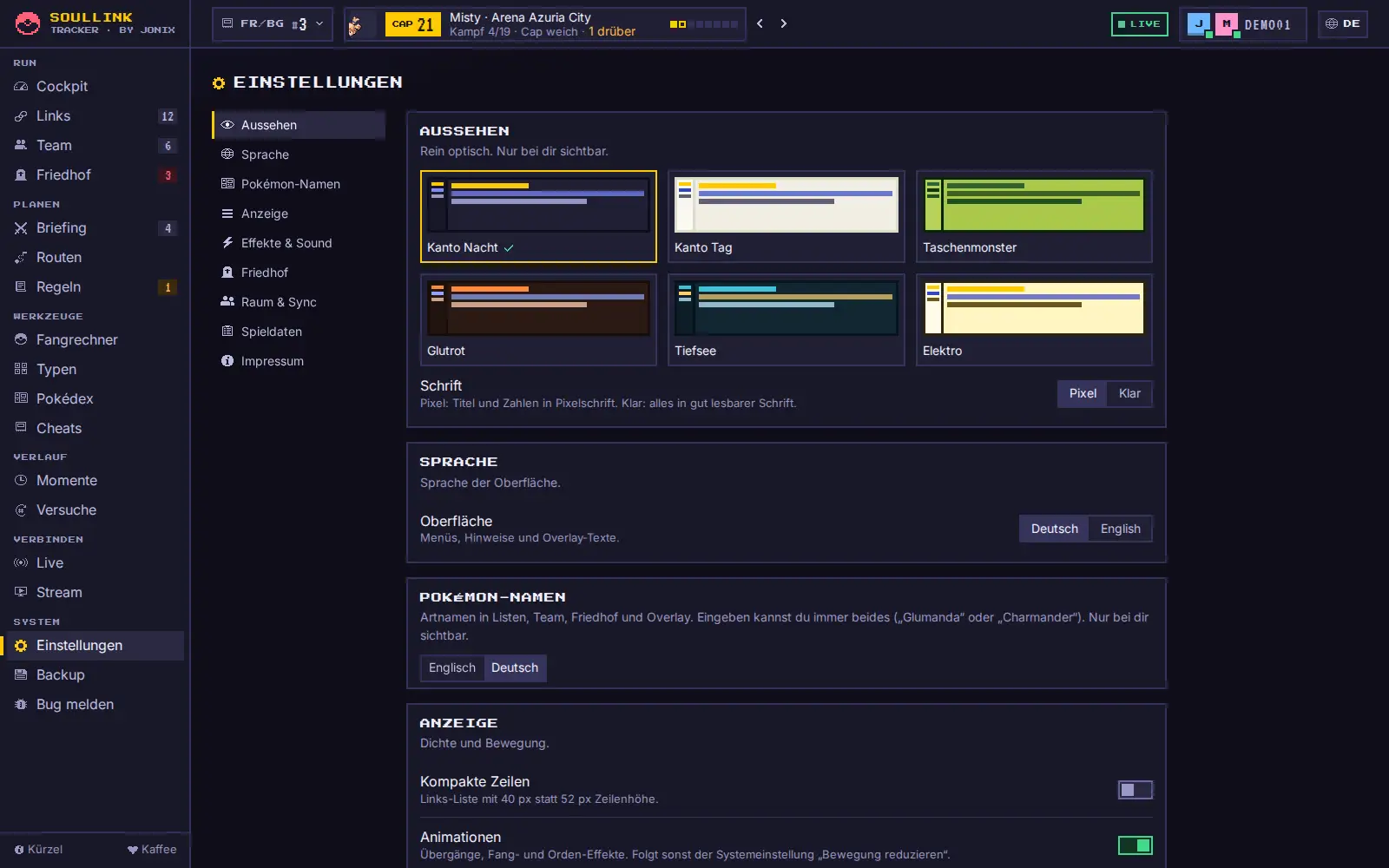
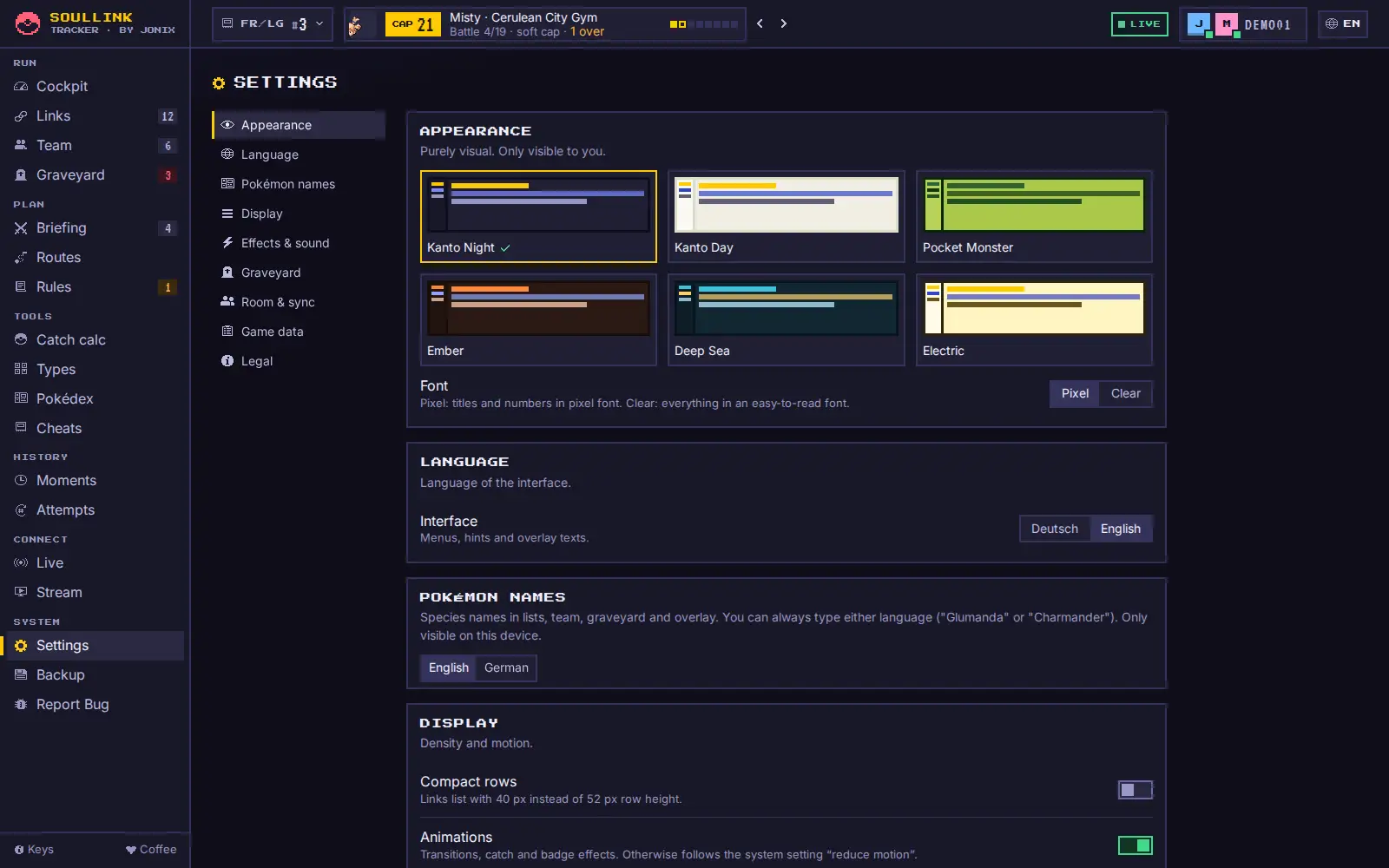
Under Appearance there are six themes, purely visual: Kanto Night (dark, default), Kanto Day (light), Pocket Monster, Ember (dark), Deep Sea (dark) and Electric. Each tile shows a small preview of the app; a click switches instantly. If you used “Kanto Classic” before, you stay on Kanto Day; “Twilight” becomes Kanto Night.
AnzeigeDisplay
- Kompakte Zeilen: Links-Liste mit 40 statt 52 px Zeilenhöhe, dazu etwas engere Karten.
- CRT-Scanlines: Retro-Bildschirmeffekt.
- Hintergrund-Partikel: schwebende Pokébälle hinter der App (nur mit Animationen). Standard: aus.
- Animationen: Hauptschalter für alle Bewegungen. Ist bei Windows „Animationen anzeigen“ ausgeschaltet, startet der Tracker ebenfalls ohne – außer du schaltest sie hier bewusst ein.
- Sound-Effekte: Hauptschalter für alle Töne (Klicks und Chiptune). Standard: aus.
- Compact rows: links list with 40 instead of 52 px row height, plus slightly tighter cards.
- CRT scanlines: retro screen effect.
- Background particles: floating Poké Balls behind the app (only with animations). Default: off.
- Animations: master switch for all motion. If “Show animations” is turned off in Windows, the tracker starts without them too – unless you deliberately turn them on here.
- Sound effects: master switch for all sounds (clicks and chiptune). Default: off.
Effekte & SoundEffects & sound
- Effekt-Stufe: Voll (mit kurzem Bildschirm-Blitz), Dezent (nur kleine Effekte am Pokémon) oder Aus.
- Lautstärke der Chiptune-Sounds von 0 bis 100 %, „Test“ spielt die Orden-Fanfare. Zu hören ist das nur, wenn oben unter Anzeige die Sound-Effekte eingeschaltet sind.
- Vorschau-Knöpfe spielen Fang, Link, Orden, Shiny, Level-Up und Tod direkt ab.
- Effect level: Full (with a short screen flash), Subtle (only small effects on the Pokémon) or Off.
- Volume of the chiptune sounds from 0 to 100 %, “Test” plays the badge fanfare. You only hear it when Sound effects are turned on under Display above.
- Preview buttons play catch, link, badge, shiny, level-up and death right away.
Pokémon-Namen: Deutsch oder EnglischPokémon names: German or English
Unter Pokémon-Namen wählst du, ob Artnamen deutsch („Glumanda“) oder englisch („Charmander“) angezeigt werden. Ohne eigene Wahl folgt die Namenssprache der App-Sprache. Eintippen kannst du immer beide Varianten – gespeichert wird nur die Pokédex-Nummer, dein Partner sieht die Namen also in seiner Sprache.
Under Pokémon names you choose whether species names are shown in German (“Glumanda”) or English (“Charmander”). Without your own choice the name language follows the app language. You can always type either variant – only the Pokédex number is stored, so your partner sees names in their language.
App-SpracheApp language
Der Knopf DE/EN mit dem Globus oben rechts in der Kopfzeile schaltet zwischen Deutsch und Englisch um, ebenso Einstellungen › Sprache. Die Wahl gilt nur für deinen PC.
The DE/EN button with the globe at the top right of the header switches between German and English, as does Settings › Language. The choice applies to your PC only.
FriedhofGraveyard
FRIEDHOF › „Todes-Dialog beim (Ursache, Killer, Level)“ (Standard: an). Ausgeschaltet tötet sofort ohne Dialog; im Friedhof steht dann „Ursache unbekannt“. Gilt nur für diesen PC. Mehr dazu unter Todes-Dialog.
GRAVEYARD › “Death dialog on (cause, killer, level)” (default: on). When off, kills right away without a dialog; the graveyard then says “Cause unknown”. Applies to this PC only. More under Death dialog.
Desktop-App: Schließen, Autostart, KürzelDesktop app: closing, autostart, shortcuts
Ganz unten in den Einstellungen steht der Block DESKTOP-APP. Er gilt nur für diesen PC.
Standardmäßig beendet das X die App. Dann sind auch das OBS-Overlay, die mGBA-Bridge und die globalen Kürzel weg. Soll der Tracker nach dem X weiterlaufen, schalte „Beim Schließen in den Tray minimieren“ ein.
- Beim Schließen in den Tray minimieren (Standard: aus): Mit Haken läuft die App nach dem X im Infobereich weiter (unten rechts neben der Uhr). Ein Klick auf das Symbol holt das Fenster zurück. Im Rechtsklick-Menü stehen Öffnen, Overlay-URL kopieren, mGBA-Skript im Explorer zeigen und Beenden.
- Mit Windows starten: Die App startet beim Anmelden unsichtbar im Infobereich. Nur in der installierten App verfügbar.
- Im Hintergrund starten: Beim Start erscheint nur das Symbol im Infobereich, Overlay und Bridge laufen trotzdem. Öffnen per Klick auf das Symbol oder mit Strg+Alt+S.
- Overlay-Server: die lokale Adresse mit „Kopieren“. Die fertige Overlay-URL mit Raumcode steht im STREAM-Tab, siehe OBS-Overlay.
- mGBA-Bridge: Status LÄUFT, PORT BELEGT oder NICHT DABEI, dazu der Knopf „mGBA-Skript im Explorer zeigen“. Mehr unter Auto-Tracking.
- Globale Tastenkürzel: „Ändern“ und „Aus“ für jedes Kürzel, Konflikte stehen direkt daneben. Siehe Kürzel ändern.
- Updates: der Update-Status. Version 2.0.0 sucht noch nicht selbst nach Updates, siehe Updates.
- Erweitert: Port des lokalen Servers (nur ändern, wenn 7788 belegt ist, siehe Port belegt) und Logs im Explorer zeigen (siehe Log-Datei).
At the very bottom of the settings you find the DESKTOP APP block. It applies to this PC only.
By default the X quits the app. The OBS overlay, the mGBA bridge and the global shortcuts are gone then too. If the tracker should keep running after the X, turn on “Minimize to tray on close”.
- Minimize to tray on close (default: off): when ticked, the app keeps running in the notification area after the X (bottom right, next to the clock). Click the icon to bring the window back. The right-click menu offers Open, Copy overlay URL, Show mGBA script in Explorer and Quit.
- Start with Windows: the app starts hidden in the notification area when you sign in. Only available in the installed app.
- Start in the background: on start only the notification area icon appears, the overlay and the bridge run anyway. Open it by clicking the icon or with Ctrl+Alt+S.
- Overlay server: the local address with “Copy”. The complete overlay URL with your room code is in the STREAM tab, see OBS overlay.
- mGBA bridge: status RUNNING, PORT IN USE or NOT INCLUDED, plus the button “Show mGBA script in Explorer”. More under Auto-tracking.
- Global shortcuts: “Change” and “Off” for every shortcut, conflicts are shown right next to it. See Changing shortcuts.
- Updates: the update status. Version 2.0.0 does not look for updates by itself yet, see Updates.
- Advanced: Port of the local server (only change it if 7788 is taken, see Port in use) and Show logs in Explorer (see Log file).