Was du brauchstWhat you need
- Die Desktop-App, gestartet (das Relais für mGBA läuft automatisch mit – kein Node.js, keine start.bat).
- mGBA 0.10 oder neuer – ab dieser Version kann mGBA Lua-Skripte ausführen.
- Pokémon FeuerRot oder BlattGrün in der englischen Fassung (US/EU) mit einem Spielstand, in dem du schon mindestens ein Pokémon hast. Das Skript braucht es, um deine Trainer-ID sicher zu lesen.
Das Auto-Tracking liest den Arbeitsspeicher des Spiels und funktioniert deshalb vorerst nur mit der englischen FeuerRot/BlattGrün (US/EU). Die deutsche Fassung („Feuerrote Edition“) nutzt andere Speicheradressen und wird noch nicht erkannt; auch bei ROM-Hacks kann die Erkennung ausfallen. Für alle anderen Editionen trägst du wie gewohnt von Hand ein.
Spielst du auf dem DS (Gen 4/5)? Dafür gibt es das DS-Auto-Tracking mit BizHawk (Beta).
- The desktop app, running (the relay for mGBA starts automatically – no Node.js, no start.bat).
- mGBA 0.10 or newer – from this version on mGBA can run Lua scripts.
- Pokémon FireRed or LeafGreen, English version (US/EU) with a save that already has at least one Pokémon. The script needs it to read your trainer ID reliably.
Auto-tracking reads the game’s memory, so for now it only works with the English FireRed/LeafGreen (US/EU). The German version uses different memory addresses and is not recognized yet; detection may also fail with ROM hacks. For all other editions you keep entering things by hand.
Playing on DS (Gen 4/5)? There is DS auto-tracking with BizHawk (beta) for that.
Skript findenFind the script
Das Lua-Skript wird mit der App installiert. Du musst es nirgends herunterladen:
- In der App die Einstellungen öffnen und ganz nach unten zum Block DESKTOP-APP gehen.
- Bei mGBA-Bridge auf „mGBA-Skript im Explorer zeigen“ klicken. Der Explorer öffnet sich mit der markierten Skript-Datei.
Schneller geht es über das Symbol im Infobereich: Rechtsklick › mGBA-Skript im Explorer zeigen. Die Datei liegt im Ordner %APPDATA%\Jonix Soullink Tracker\mgba\. Bringt eine neue App-Version eine neuere Fassung mit, wird sie beim Start dort automatisch ersetzt.
Merk dir den Ordner oder zieh die Datei einmal in mGBA – mGBA merkt sich zuletzt geladene Skripte.
The Lua script is installed together with the app. You don’t need to download it anywhere:
- In the app open the settings and go all the way down to the DESKTOP APP block.
- Next to mGBA bridge click “Show mGBA script in Explorer”. Explorer opens with the script file selected.
It is quicker via the notification area icon: right-click › Show mGBA script in Explorer. The file lives in the folder %APPDATA%\Jonix Soullink Tracker\mgba\. If a new app version brings a newer script, it is replaced there automatically on start.
Remember the folder – mGBA also remembers recently loaded scripts.
Skript in mGBA ladenLoad the script in mGBA
- mGBA starten und FeuerRot oder BlattGrün laden.
- Menü Tools › Scripting… öffnen.
- Im Scripting-Fenster File › Load script… wählen und die Skript-Datei aus dem Explorer auswählen.
- Im Scripting-Fenster erscheinen jetzt Meldungen. Lass das Fenster offen (minimieren ist okay) – wird es geschlossen, stoppt das Skript.
Ob die App bereit ist, siehst du in den Einstellungen im Block DESKTOP-APP: Bei mGBA-Bridge muss LÄUFT stehen.
- Start mGBA and load FireRed or LeafGreen.
- Open the menu Tools › Scripting….
- In the scripting window choose File › Load script… and pick the script file from Explorer.
- Messages now appear in the scripting window. Keep the window open (minimizing is fine) – closing it stops the script.
Whether the app is ready is shown in the settings in the DESKTOP APP block: next to mGBA bridge it has to say RUNNING.
Auto-Tracking einschalten & Spieler zuordnenTurn on auto-tracking & assign your player
- In der App in der Seitenleiste unter VERBINDEN auf LIVE klicken (oder auf die LIVE-Anzeige oben in der Kopfzeile).
- Den Schalter Auto-Tracking einschalten. Er gilt nur für diesen PC; ohne ihn fragt die App die Bridge gar nicht erst ab.
- Die Status-Karte zeigt jetzt BRIDGE „verbunden“ und – sobald das Skript in mGBA läuft – LUA „aktiv“. Oben im Kopf neben dem Raumcode leuchtet der LIVE-Punkt grün (gelb = Bridge da, aber kein Signal vom Skript; rot = Bridge nicht erreichbar).
Das Skript weiß nicht, ob du Spieler 1 oder 2 bist – die App schon: Unter Encounter für steht standardmäßig Ich, also die Seite, die du bei „Wer bist du?“ gewählt hast. Du kannst auch fest Spieler 1 oder Spieler 2 wählen. Spielt ihr beide mit Auto-Tracking, lädt jeder das Skript auf seinem eigenen PC und trägt für seine eigene Seite ein.
Die Kurzanleitung im LIVE-Tab erwähnt noch start.bat und Node.js aus der Zeit vor der App. In der Desktop-App läuft die Bridge von selbst mit – du musst nichts extra starten.
- In the app click LIVE under CONNECT in the sidebar (or the LIVE indicator at the top of the header).
- Turn on the Auto-tracking switch. It applies to this PC only; without it the app doesn’t even ask the bridge.
- The status card now shows BRIDGE “connected” and – as soon as the script runs in mGBA – LUA “active”. In the header next to the room code the LIVE dot turns green (yellow = bridge reachable but no signal from the script; red = bridge not reachable).
The script does not know whether you are player 1 or 2 – the app does: Encounters for defaults to Me, i.e. the side you picked under “Who are you?”. You can also fix it to player 1 or player 2. If you both use auto-tracking, each of you loads the script on your own PC and fills in your own side.
The short guide in the LIVE tab still mentions start.bat and Node.js from the days before the app. In the desktop app the bridge runs by itself – you don’t have to start anything extra.
Vorschläge eintragenAdd suggestions
Triffst du auf einer Route zum ersten Mal ein wildes Pokémon, erkennt das Skript Art, Ort und Level und meldet sie an die App. Es erscheint eine Textbox wie „Ein wildes TAUBSI erscheint! Ort: Route 1 – Eintragen für Jonix?“ mit Eintragen und Ignorieren. Fängst du es, fragt die App „… wurde gefangen! Als gefangen markieren für Jonix?“.
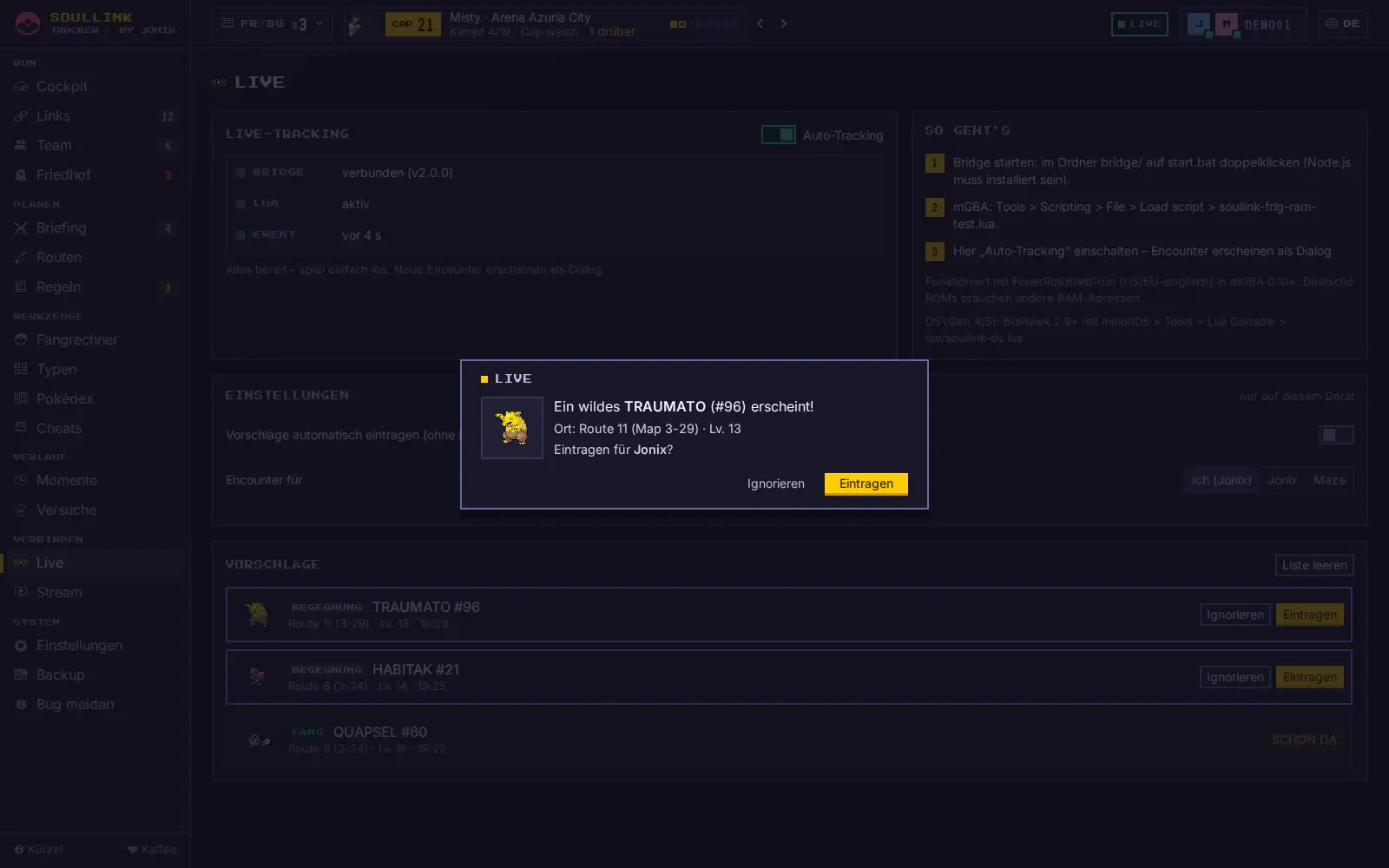
- Jeder Vorschlag steht außerdem als Karte in der Liste VORSCHLÄGE im LIVE-Tab – mit Status OFFEN, EINGETRAGEN, AUTO, IGNORIERT oder SCHON DA. Schließt du die Textbox mit Esc, bleibt der Vorschlag dort offen.
- Die Map-Nummer aus dem Spiel wird automatisch in einen Routennamen übersetzt; gibt es die Route schon als Link, füllt die App diesen Link.
- Geschenke wie Starter oder Evoli schlägt die App als Link „Geschenk: …“ vor – immer mit Rückfrage.
- Trainer-Kämpfe werden ignoriert.
- Steht auf der Route schon ein anderes Pokémon oder liegt sie im Friedhof, fragt die App nach. Enter heißt dann immer Ignorieren – überschrieben wird nur mit einem Klick auf Überschreiben.
Wer nur einen Bildschirm hat, schaltet Vorschläge automatisch eintragen (ohne Nachfrage) ein. Dann kommt nur ein kurzer Hinweis; bei Geschenken, im Friedhof oder wenn etwas überschrieben würde, fragt die App trotzdem.
When you meet a wild Pokémon on a route for the first time, the script detects species, location and level and reports them to the app. A text box like “A wild PIDGEY appeared! Location: Route 1 – Add it for Jonix?” appears with Add and Ignore. If you catch it, the app asks “… was caught! Mark as caught for Jonix?”.
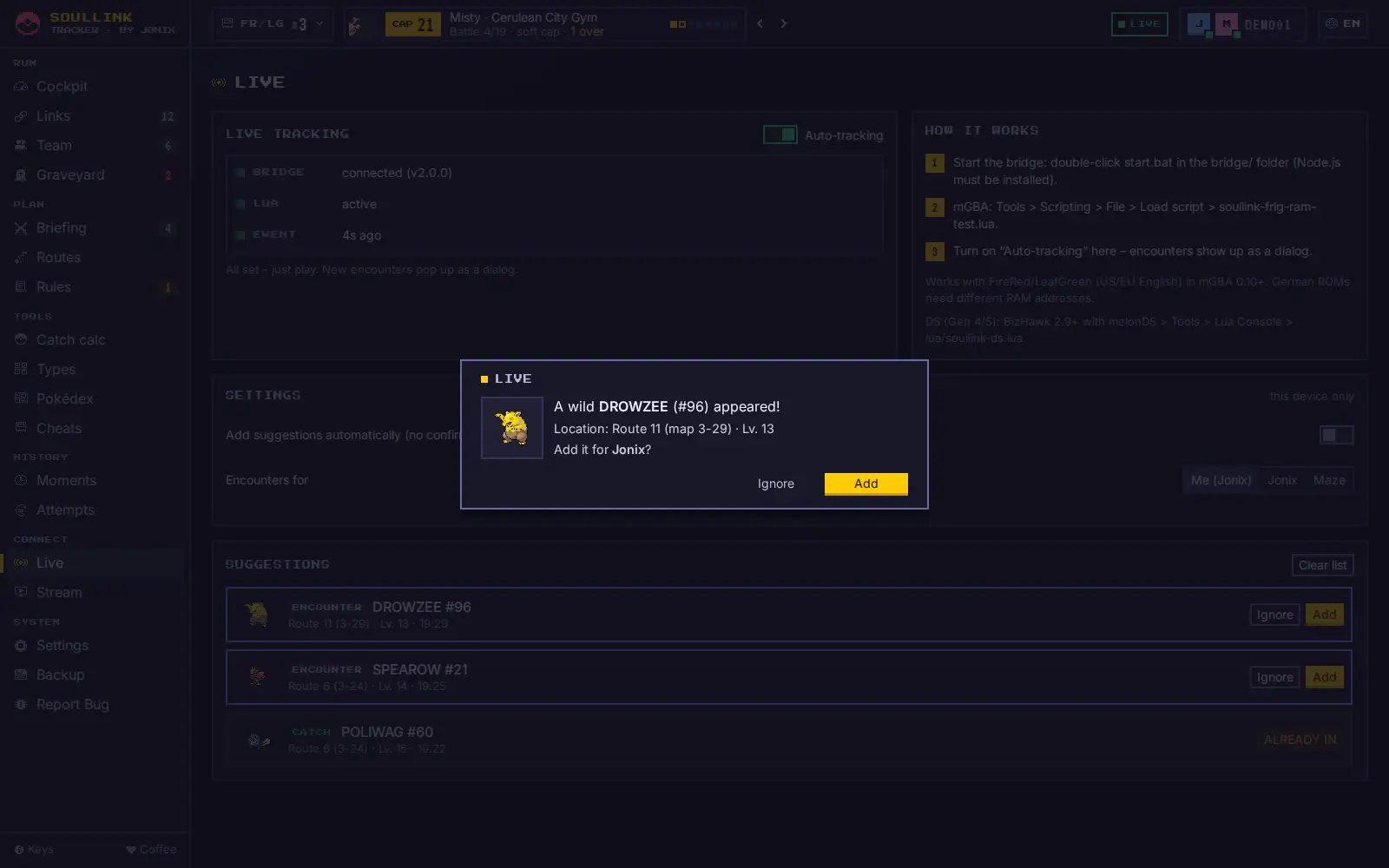
- Every suggestion is also listed as a card under SUGGESTIONS in the LIVE tab – with the status OPEN, ADDED, AUTO, IGNORED or ALREADY IN. If you close the text box with Esc, the suggestion stays open there.
- The in-game map number is translated into a route name automatically; if the route already exists as a link, the app fills that link.
- Gifts like starters or Eevee are suggested as a link “Gift: …” – always with confirmation.
- Trainer battles are ignored.
- If the route already has another Pokémon or lies in the graveyard, the app asks. Enter then always means Ignore – it only overwrites when you click Overwrite.
If you only have one screen, turn on Add suggestions automatically (no confirmation). You then just get a short notice; for gifts, the graveyard or anything that would be overwritten, the app still asks.
Wenn nichts ankommtIf nothing arrives
- Ist im LIVE-Tab der Schalter Auto-Tracking an?
- Läuft die App? Die Bridge gibt es nur, solange die App läuft. Standardmäßig beendet das X die App – siehe Desktop-App.
- Status prüfen unter Einstellungen › Desktop-App › mGBA-Bridge: LÄUFT = alles bereit. PORT BELEGT = ein anderes Programm nutzt Port 7777, meist die alte
bridge.js/start.bat(siehe Port belegt). NICHT DABEI = diese App-Version bringt die Bridge nicht mit. - Steht bei LUA „kein Signal“? Dann läuft das Skript in mGBA nicht (Scripting-Fenster geschlossen?).
- Englische FeuerRot/BlattGrün-ROM? Die deutsche Fassung wird noch nicht erkannt.
- Hat dein Spielstand schon ein Pokémon? Ohne liest das Skript die Trainer-ID nicht.
- Mehr Tipps: Fehlerbehebung › mGBA erkennt nichts.
- Is the Auto-tracking switch in the LIVE tab on?
- Is the app running? The bridge only exists while the app runs. By default the X quits the app – see Desktop app.
- Check the status under Settings › Desktop app › mGBA bridge: RUNNING = all set. PORT IN USE = another program uses port 7777, usually the old
bridge.js/start.bat(see Port in use). NOT INCLUDED = this app version does not include the bridge. - Does LUA say “no signal”? Then the script is not running in mGBA (scripting window closed?).
- English FireRed/LeafGreen ROM? The German version is not recognized yet.
- Does your save already have a Pokémon? Without one the script cannot read the trainer ID.
- More tips: Troubleshooting › mGBA detects nothing.